Managing observations
Observations list#
Observations > Observations list shows all the observations contained in the current BORIS project.
The following values are displayed:
-
the observation id (id)
-
the description of the observation
-
the coded subjects (subjects)
-
the observation duration (as the difference between the last recorded event and the first one)
-
the percent of exhaustivity of the coding (as the sum of the length of the coded events divided by the observation duration)
-
the media file path, LIVE for a live observation, or the pictures directory path for an observation based on pictures
-
the values of the independent variables (if defined)
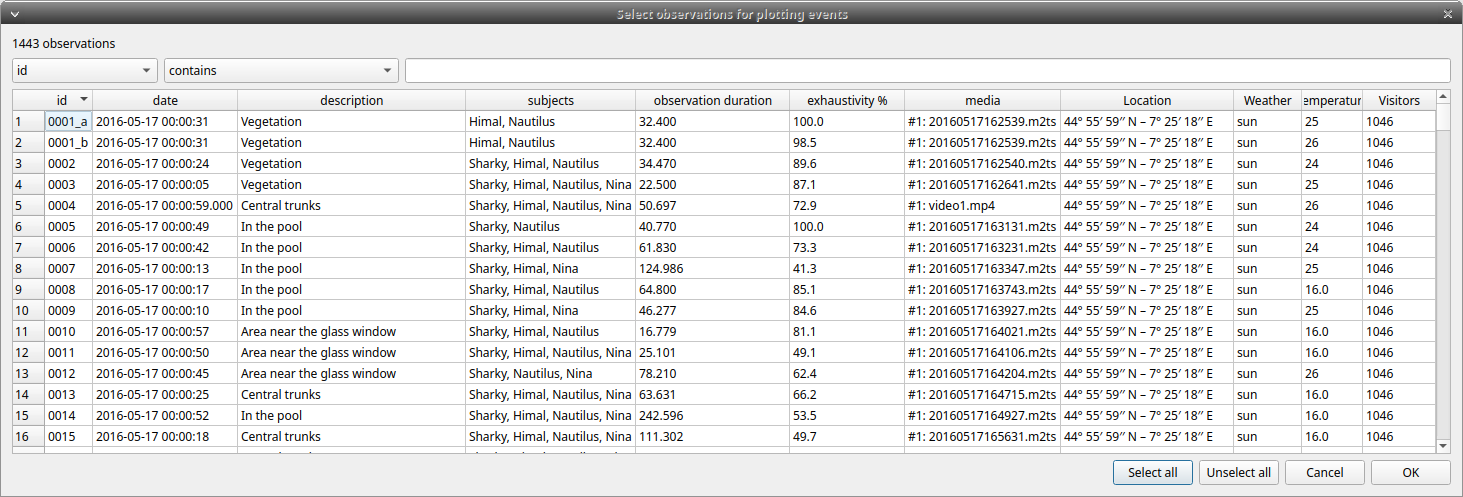
The observations can be sorted by clicking the desired column header (alphabetic order ascending or descending).
Checking the observations#
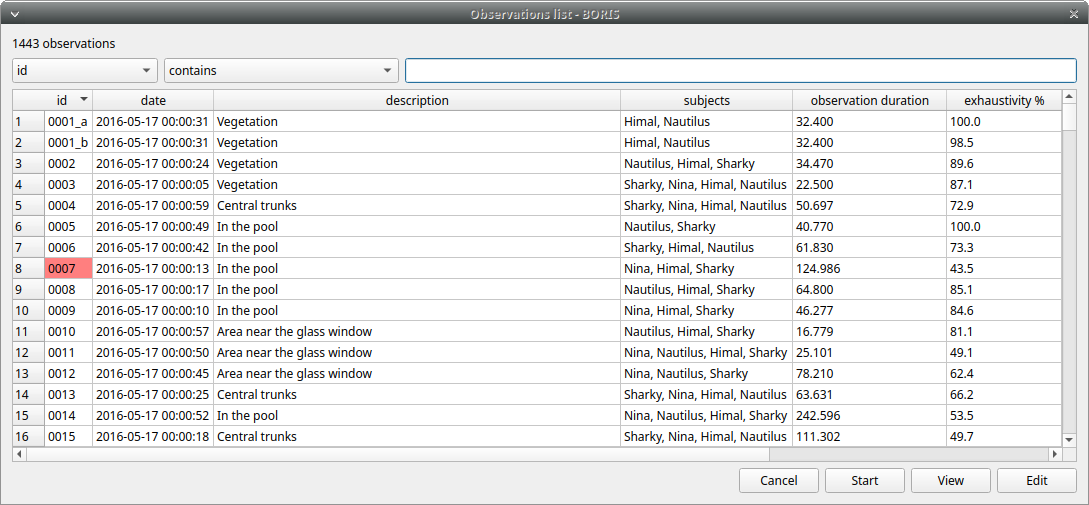
The observation status is displayed in the first column (id). If the background of this column is red, the observation has one or more UNPAIRED state events. These UNPAIRED observations will not be analyzed. See Fix unpaired state events for details.
Filtering the observations#
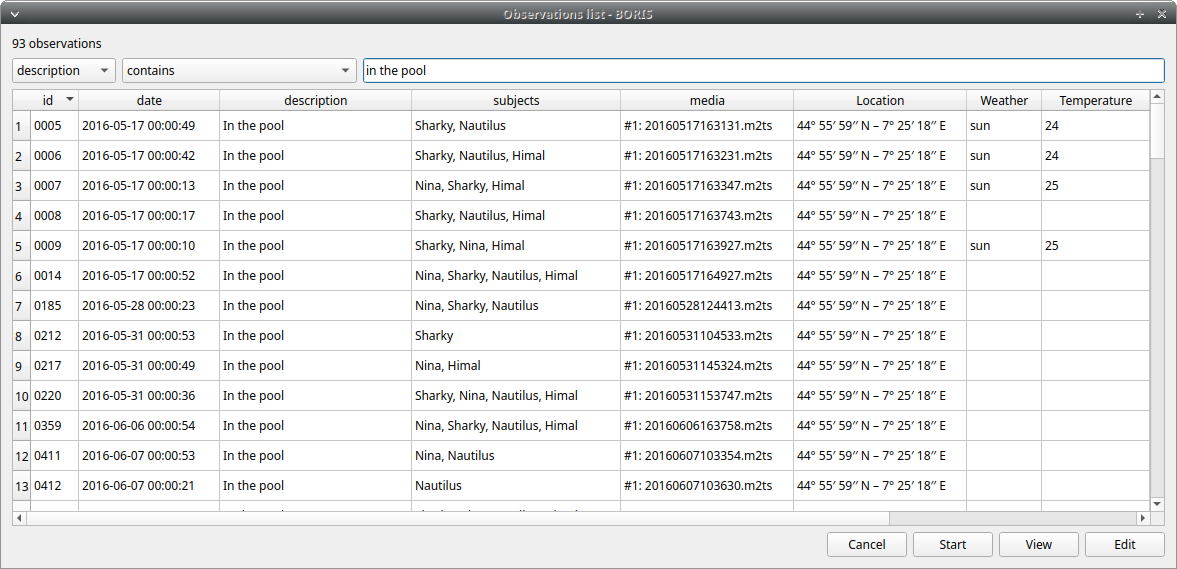
The observations list can be filtered by selecting a field and a condition from the drop-down lists.
In the following example observations are filtered: only observations with description containing the In the pool subject are shown:
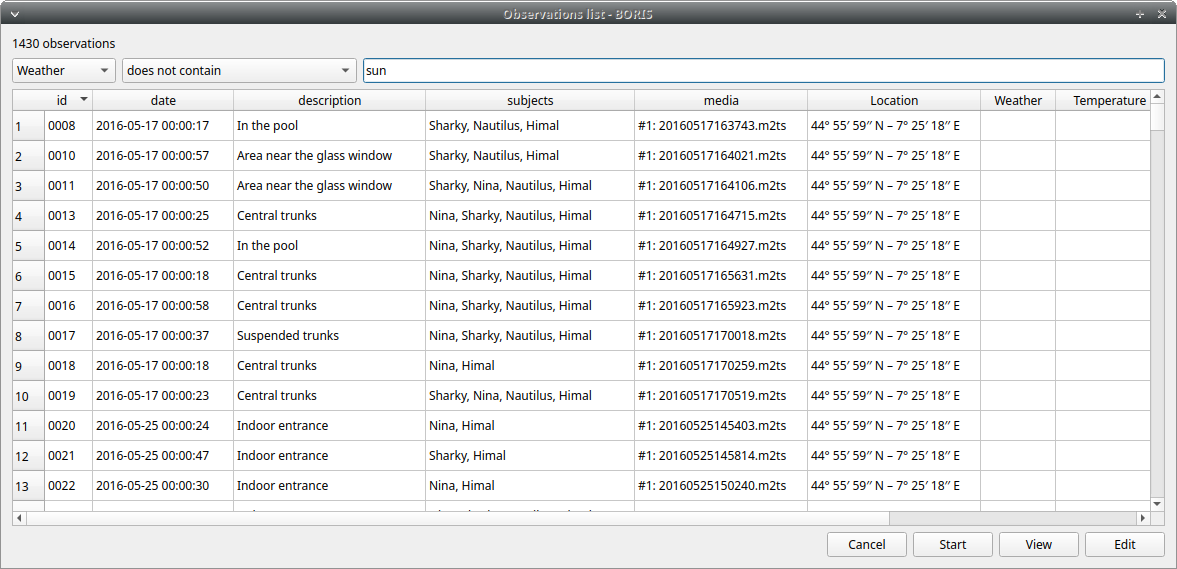
Observations can be filtered with Independent variables values.
The following example displays only the observations that do not contain "Sunny" in the Weather independent variable :
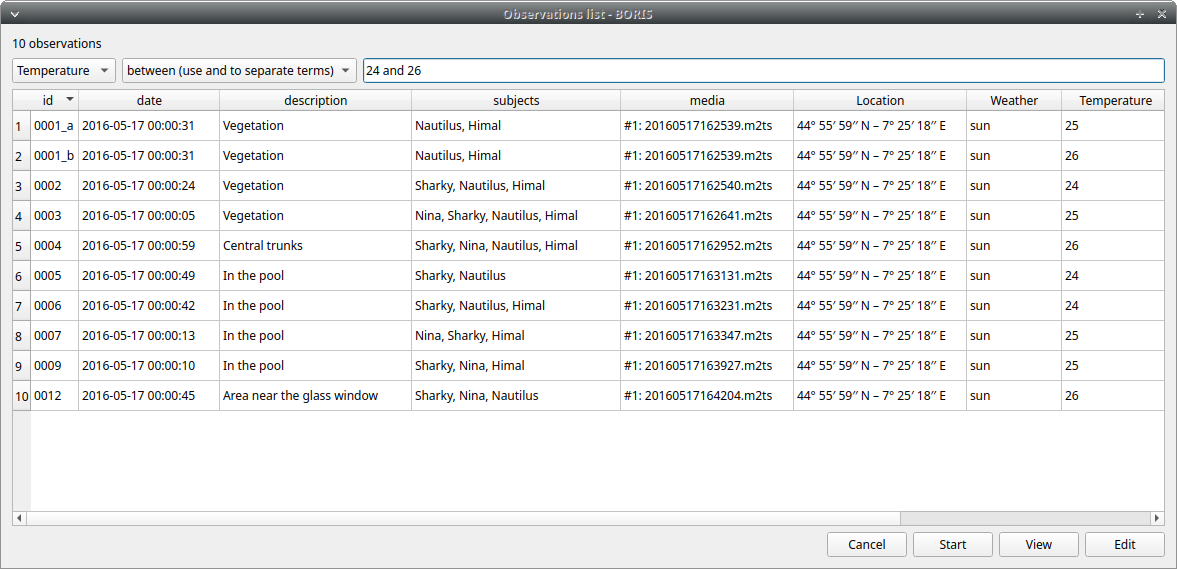
Observations with a value of Temperature independent variable between 18 and 22:
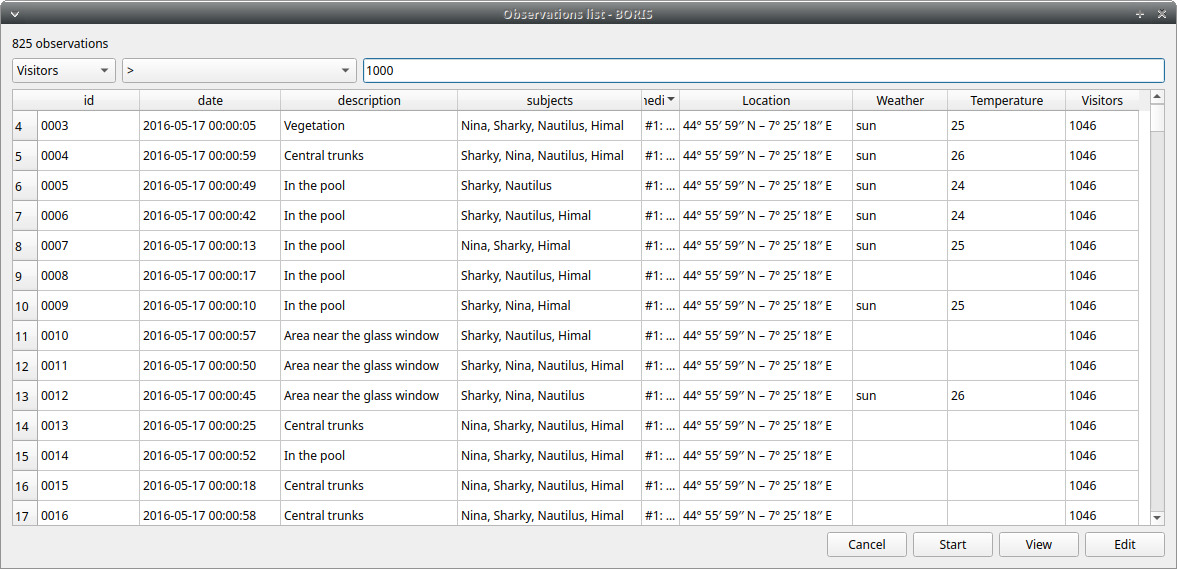
Observations with a value of Visitors independent variable greater than 1000:
Delete observations from project#
Observations can be deleted from the project using the following procedure:
Observations > Remove observations
Select the observations you want to delete.
Click the OK button and confirm the deletion.
Deletion is irreversible, and deleted observations cannot be restored.
It's a good idea to back up your project before proceeding with removing observations.
Create observations in bulk#
Observations from media files can be created from a directory of media files:
Observations > Create observations
Choose the directory.
Select the parameters.

The ID of each created observation will be the path to the media file.
Import observations#
The Observations > Import observations option allows you to import observations. Two formats are available for importing observations:
From a BORIS project file#
Choose the BORIS project file and then the observations to import. BORIS will check whether observations with the same ID already exist in the current project. BORIS will also check if behaviors and/or subjects used in the imported observations are not defined in the current project.
From a spreadsheet file#
Observations can be imported from:
- OpenDocument (ODS)
- Microsoft-Excel (XLSX)
Choose the spreadsheet file
Export a list of observations#
This option allows you to export the selected observations as a list in various formats (CSV, TSV, ODS, XLSX, HTML):
Observations > Export observations list
The data frame will contain the following columns:
- Observation id
- Date
- Description
- Subjects
- Media files/Live observation
- independent variables